
Example: Storyboard — Content Slides
A Storyboard for the Lesson
Turn policy guidance into a structured, slide-by-slide course storyboard.
Content Studio
Storyboard • Style Guide • Graphics • Narrations • Sound Effects • Music
Turn a course topic or source document into an editable storyboard. Write slide content, plan interactions, create narration, captions, graphics, sound effects, and music, then export the storyboard for review or production.
Start your course outlineProject Examples
See how a source document becomes a storyboard, style guide, and course media.
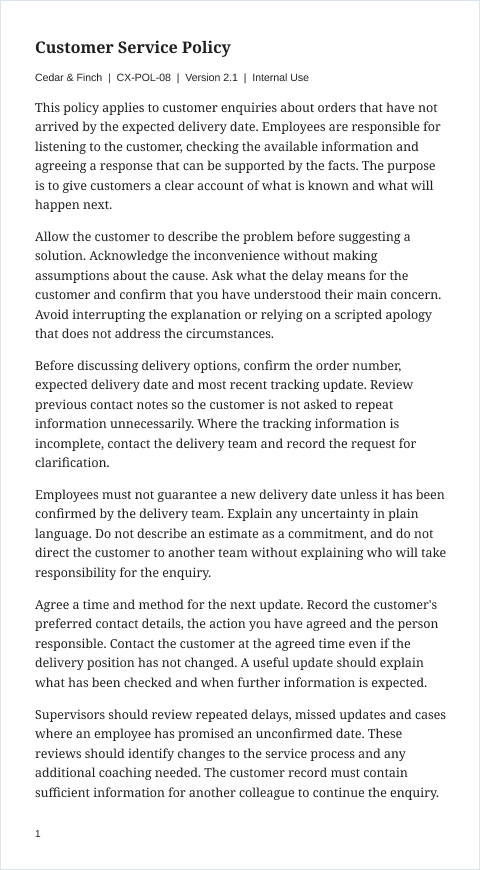
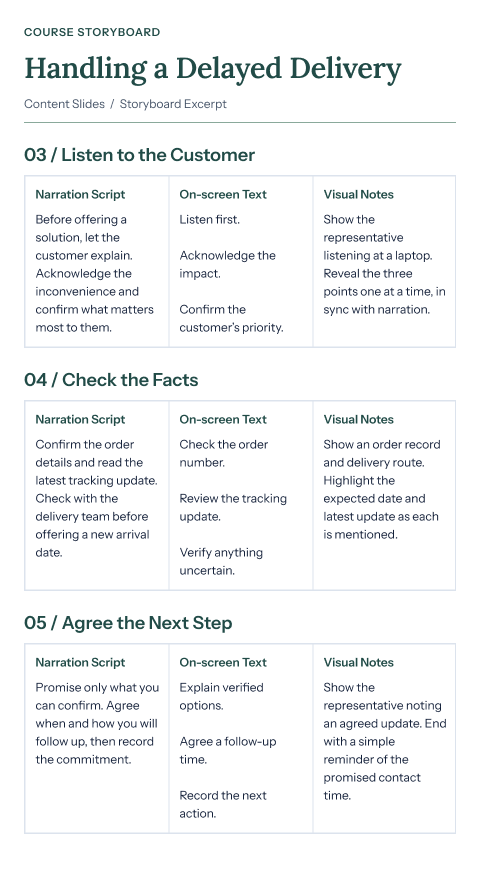
Example: Storyboard — Content Slides
Turn policy guidance into a structured, slide-by-slide course storyboard.
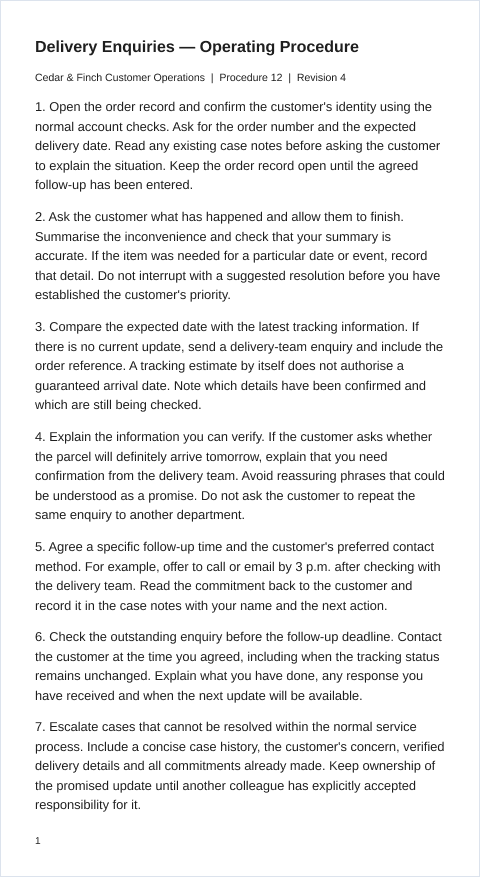
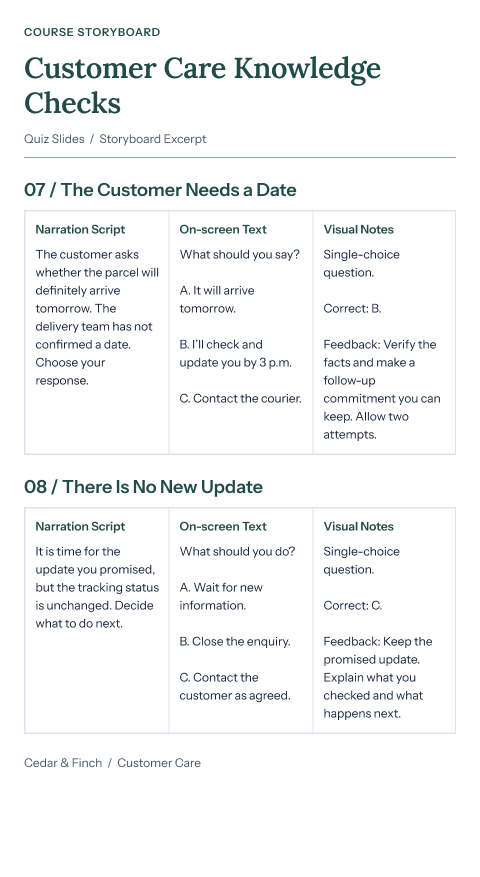
Example: Storyboard — Quiz Slides
Turn an operating procedure into quiz slides with answer logic and feedback.
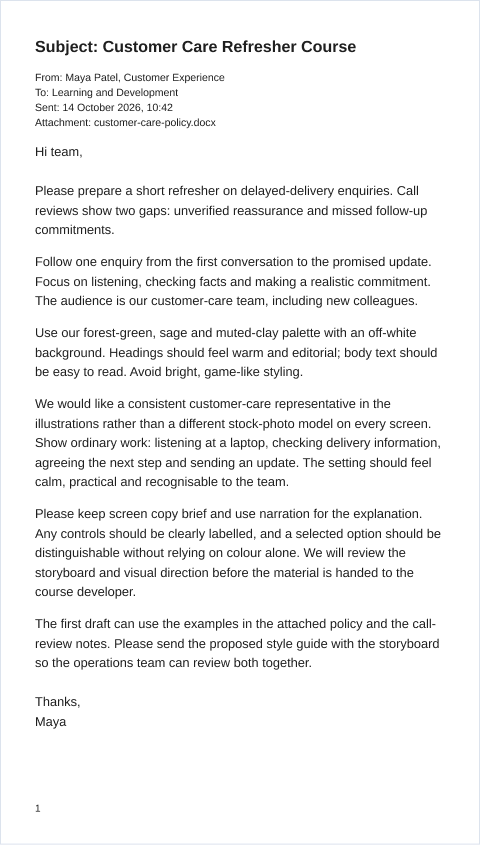
Example: Style Guide
Bring colors, typography, and illustration direction into one course style guide.
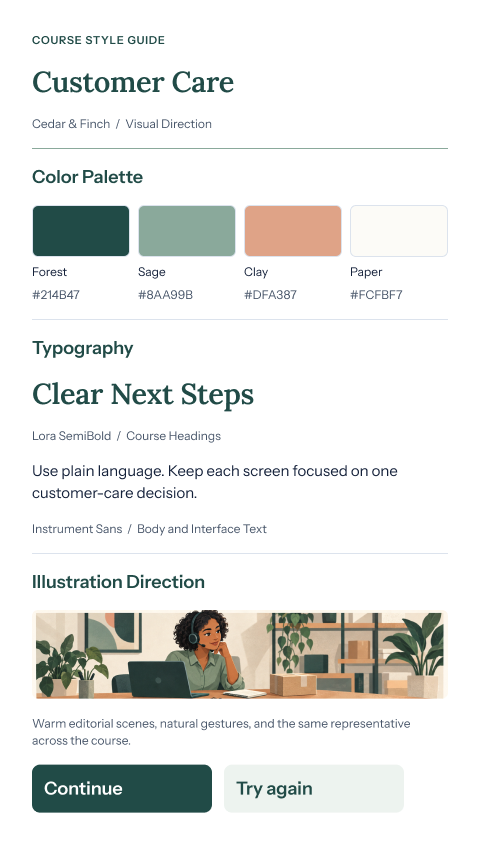
Example: Course Images
Create course graphics from the storyboard’s content and visual direction.
Example: Course Audio
Create audio assets from narration scripts and production notes.
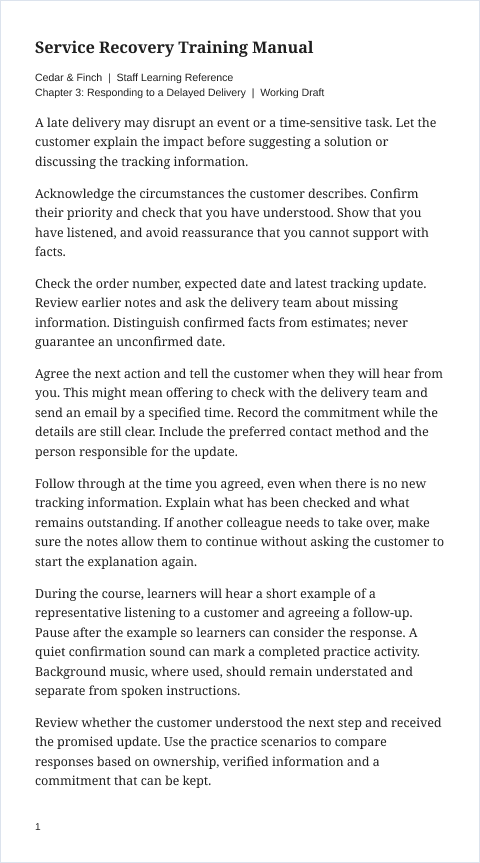
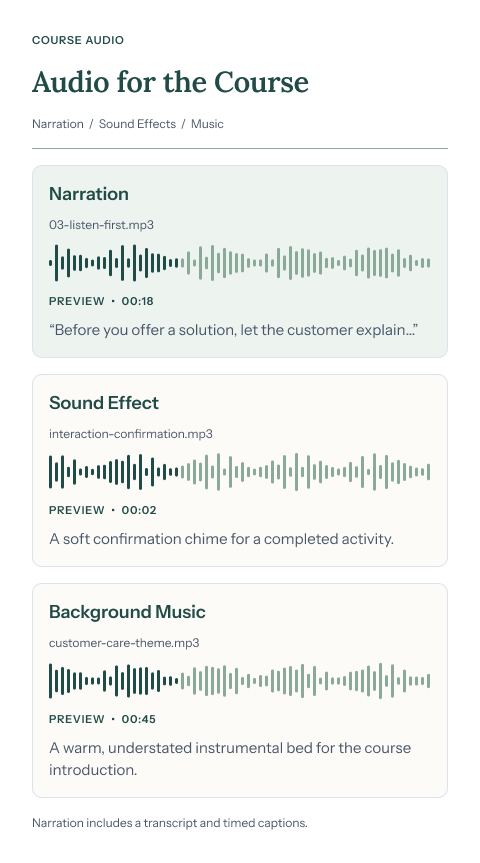
Unified Workspace
Content Studio combines course storyboarding and media creation in a single workspace. AI does the heavy lifting, drafting your outline, slide scripts, practice activities, and supporting media in minutes. You stay in full creative control to review, edit, and refine every detail before development.
Production Kickoff
Describe the course, paste your source text, import an existing document, or begin with a blank storyboard. AI takes care of the initial heavy lifting, turning raw topics or notes into a structured, screen-by-screen course outline in seconds.
Storyboard Architecture
Choose the kinds of slides the course needs and where each new block belongs. AI generates the initial draft in seconds, and you can edit every field directly to match your instructional goals.
Practice & Assessment
Draft interactions and practice activities with AI using the context of surrounding slides.
Let AI generate scenario-based presentations, branching decision activities, and interactive case studies based on your course context.
Automatically draft trivia challenges, problem-solving activities, puzzles, drag-and-drop exercises, hotspots, click-to-reveal steps, timelines, and interactive infographics.
Generate multiple-choice, true-or-false, fill-in-the-blank, and matching questions with distractors and explanations.
Each activity slide includes the copy, question logic, and developer notes ready for review and build in your authoring tool.
Visual Direction
Record the design decisions that should carry through the course instead of rewriting them for every asset or production handoff.
Media Production
Use the scripts and production notes already attached to each slide to produce course media with AI in minutes.
Review & Handoff
Send the storyboard to the format your reviewers and course developers already use.
Production Workflow
Describe the topic, paste existing material, import a document, reference another storyboard, or begin with a blank project.
AI generates the initial outline and slide draft in seconds; you refine slide pacing, content, and developer notes.
Apply the project's style guidance while AI produces narration, captions, graphics, sound effects, and music directly from slide scripts.
Export the approved content to Word, Google Docs, CSV, or PDF. Bring the storyboard and media into Storyline, Captivate, or your preferred course-production workflow.
Agentic Development
Use the Model Context Protocol (MCP) to bring Content Studio directly into your preferred AI desktop client or coding environment. With MCP, autonomous AI agents in tools like Claude, ChatGPT, Google Gemini, Google Antigravity, Visual Studio Code, and Kiro can inspect storyboards, draft slides, manage project style settings, and trigger media production programmatically.
Learn more about available tools and step-by-step client configuration in our Model Context Protocol guide.
Common Questions
No. You can write any part of the storyboard manually and call on AI only where you want it. For example, you can write all the slide content yourself and use AI solely to generate voiceover audio and graphics, or have AI draft an outline and practice activities while you write the lessons. You choose slide by slide which elements to write and which to generate.
Yes. You can revise the outline and every storyboard field, including slide titles, narration, on-screen text, visual direction, and developer notes. You can also reorder, duplicate, copy, or remove slides.
You can anchor visuals with up to 4 project reference images and define project style rules. The AI references these anchors during generation to keep character faces, art styles, and color palettes consistent from slide to slide.
Yes. Content Studio saves your selected voice profile, speed, pitch, and delivery tone at the project level. When you update lessons or add new slides later, newly generated narration matches your existing course audio seamlessly.
Yes. You retain full commercial rights to all generated narration audio, captions, graphics, sound effects, and music for use in your organization's training, client deliverables, and published courses.
Use Content Studio to prepare and review the slide copy, narration, visual direction, interactions, and media. Export the approved storyboard, then bring the content and assets into Storyline, Captivate, or another authoring workflow.
Yes. When generating narration, you can request timed SRT caption files alongside the MP3 audio.
Yes. You can use a style-guide preset or import a style guide from another Content Studio project. You can also select reference images and specific style rules when generating graphics.
Get Started
Bring in your source material, shape the storyboard, and create the scripts and media your production team needs.